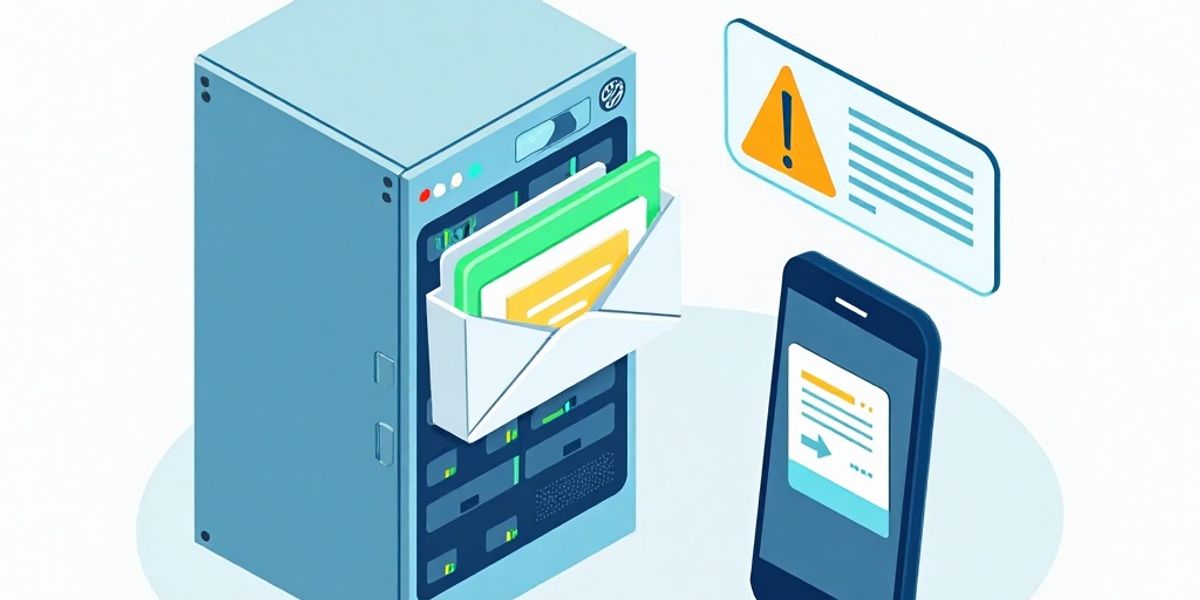
Your monitoring tools already know when something breaks. The problem is that they tell an inbox, and inboxes are easy to miss at 2am, during a meeting or on a weekend away from the laptop. A disk filling up, a failed backup or a stuck job queue can sit unread for hours while customers notice first.
Email to SMS fixes that without replacing the systems you already run. Any tool that can send an email can now send a text message to your on-call staff. In this guide you will learn how email alerts to SMS works with DataFlows, how to set it up for monitoring and job notifications, and how to write alert emails that read well as a text.
What Is Email Alerts to SMS?
Email alerts to SMS is the practice of turning the automated emails your systems already send into text messages on a person's phone. Instead of an alert landing only in an inbox, the alerting system addresses the email to a mobile number at an Email to SMS domain, and the gateway delivers the email body as an SMS.
With DataFlows, the address format is the mobile number in international format, followed by the Email to SMS domain. For example, an alert sent to [email protected] arrives as a text on that mobile. The email body becomes the SMS text, so the message your server writes is the message your engineer reads.
This approach suits server monitoring, uptime checks, backup reports, order alerts and job notifications. It needs no plugin, no code changes and no new alerting platform. If your tool can email a configurable address from an authorised sender, it can text your team.
Why It Matters for Australian Businesses
Many Australian teams run lean. The person on call for the web server is often the same person who handles support tickets, client meetings and school pickup. Email is a poor channel for anything urgent because it competes with newsletters, invoices and internal threads.
SMS cuts through. A text arrives on the lock screen, works without a data connection and does not depend on someone opening a mail app. For businesses with staff spread across cities, regional sites or field work, it is the most dependable way to reach a person quickly.
There is also a cost and effort angle. Plenty of businesses already have alerting configured in their hosting panel, backup software, network monitoring or ecommerce platform. Rebuilding those alerts on a new platform takes time. Pointing the existing email notification at an Email to SMS address takes minutes.
DataFlows is an ACMA-registered Originating Telco based in Australia, with the app and database hosted in Sydney. Your alerts use your own DataFlows credits and your own sender ID or number.
Key Benefits
- No new tooling: Keep your current monitoring, backup and job systems. You only change where the alert email is sent.
- Works with almost any system: If a tool can send an email to an address you choose, it can send an SMS through DataFlows.
- Faster response: A text reaches on-call staff on their lock screen, even when they are away from email.
- Several people at once: One alert email can reach up to 10 recipients, counted across To, Cc and Bcc.
- Branded and recognisable: Messages go out from the sender ID or number you choose in Default SMS Settings, so staff know the alert is genuine.
- Pay as you go: Alerts use your DataFlows SMS credits. There are no monthly fees on any plan, and credits never expire.
Step-by-Step Guide: Sending Monitoring Alerts by SMS
Step 1: Create your DataFlows account
Sign up at dataflows.com.au. The free trial gives you 2 weeks with 3 credits, sending only to your own verified mobile numbers, with no credit card required. That is enough to test an alert end to end before you top up.
Step 2: Authorise the address your system sends from
Email to SMS only accepts messages from your DataFlows login email or from an extra address you authorise. In the dashboard, open the Email to SMS menu item, go to Authorized Email Addresses and click Add Email. Add the exact address your monitoring tool, server or app uses as its sender, for example [email protected].
This step matters for automated systems. Many tools send from a generic address such as noreply@ or monitoring@. If that address is not authorised, the email will not become an SMS.
Step 3: Check that the sending domain passes DKIM or DMARC
The sending domain must pass email authentication (DKIM or DMARC). Gmail, Outlook and most business email services handle this automatically. Emails that fail authentication are not sent.
Watch out for servers that send mail directly from the machine, or older tools that use a basic SMTP setup without signing. The safest option is to route alerts through your normal business email service or a mail relay that signs messages for your domain. If in doubt, ask whoever manages your domain's email settings to confirm DKIM or DMARC is in place.
Step 4: Choose your sender ID or number
On the Email to SMS page, open Default SMS Settings and choose the sender ID or number your alerts will use. A clear business name sender ID helps staff recognise alerts instantly. Every plan, including the free trial, includes a free business name sender ID.
Step 5: Point the alert at the on-call mobile numbers
In your monitoring or notification tool, set the alert recipient to the mobile number in international format at the DataFlows domain. For an Australian mobile, drop the leading zero and add 61, so 0404 235 133 becomes [email protected].
To reach a small on-call group, add more addresses to the same email. You can include up to 10 recipients per email, counted across To, Cc and Bcc.
Step 6: Shorten the alert body
The email body becomes the SMS text. Most alerting tools let you edit the notification template, so trim it to the essentials: what failed, where, and when. Long bodies split into more SMS parts and use more credits.
Remove signatures and footers from the template. DataFlows does not strip signatures automatically, so a line such as "Sent from Outlook for Android" or a long legal disclaimer will end up in the SMS.
Step 7: Send a test alert
Trigger a test notification from your tool, or temporarily lower a threshold, and confirm the text arrives with the right sender and wording. Test once from each system you connect, because each may use a different sender address.
Use Cases Beyond Server Monitoring
Uptime and website checks
Uptime monitors usually support email notifications out of the box. Send the "site down" alert to two or three on-call phones so someone can act before customers start calling.
Backup and scheduled job failures
Nightly backups and batch jobs often report by email. A failed backup that sits unread for days is a real risk. Sending only the failure notifications to SMS keeps the signal high without flooding phones with success messages.
Order and job notifications
Ecommerce platforms, booking tools and job management systems send emails for new orders, urgent jobs or high-value bookings. Routing selected notifications to a manager's phone means fewer missed opportunities after hours.
Facilities and equipment alerts
Building systems, cool rooms and network equipment can often email when something is out of range. A text to the duty manager turns a quiet inbox alert into something that gets handled.
How DataFlows Helps
DataFlows Email to SMS lets you send an SMS by emailing a mobile number at smsmail.dataflows.com.au from any email app or system, with no plugin needed. It is the quickest route from an existing email alert to a text on an on-call phone.
Because Email to SMS runs on the same platform as the rest of DataFlows, you can grow from there. Teams that live in Microsoft Teams can use the Microsoft Teams integration for incident alerts and escalation. Developers who want full control over alert content and logic can call the SMS API directly, getting an API token from the Developer section of the DataFlows dashboard.
Pricing is pay as you go: you buy SMS credits and top up when needed, with no monthly fees on any plan. Credits never expire, so a quiet month of alerts costs you nothing extra. See current rates on the bulk SMS page.
Full setup details are in the Email to SMS documentation.
Best Practices
- Send only actionable alerts: Route failures and critical thresholds to SMS. Keep routine success reports and daily summaries in email.
- Lead with the problem: Put the most important words first, such as "DOWN: web01 not responding", so the lock screen preview tells the story.
- Keep bodies short: Aim for a single SMS. Long bodies split into more parts and use more credits.
- Strip signatures and footers: Edit alert templates to remove disclaimers, unsubscribe text and "Sent from" lines, because signatures are not removed automatically.
- Authorise every sending address: Each system may send from a different address. Add each one under Authorized Email Addresses before going live.
- Confirm email authentication: Make sure the sending domain passes DKIM or DMARC, especially for servers sending mail directly.
- Keep the on-call list current: Update recipient addresses when the roster changes, and remember the limit of 10 recipients per email.
- Test after every change: Send a test alert whenever you change templates, sender addresses or recipients.
Conclusion
You do not need a new alerting platform to get urgent notifications in front of the right people. If your systems already send email alerts, DataFlows Email to SMS can turn them into text messages for your on-call staff in a few minutes. Authorise the sending address, confirm DKIM or DMARC, point the alert at [email protected], and keep the body short.
Ready to stop missing critical alerts? Sign up at dataflows.com.au and start your free trial today.